
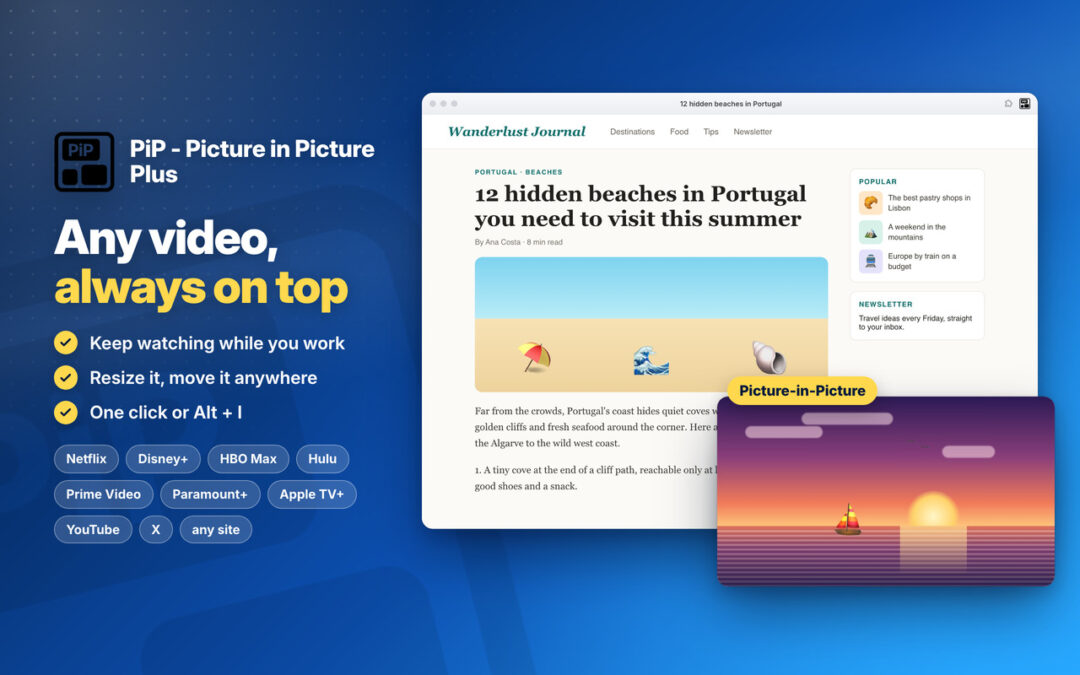
A class you want to follow while you take notes. The second half of a match while you answer emails. A recipe video next to the shopping list. Some videos are better when they float in a small window, always on top, while you do something else on the computer.
That is what Picture in Picture does. In this post we explain what the browser can do on its own, what our free extension PiP – Picture in Picture Plus adds on top, and how to start in a few seconds in Chrome, Microsoft Edge and Firefox.
What Picture in Picture is
Picture in Picture, or PiP, takes the video out of the web page and puts it in its own small window. You can move that window anywhere, resize it, and it stays on top of your other windows, even when you switch tabs or open another program.
Modern browsers have this built in, but it is not always easy to reach: on many sites you have to find the right menu, some players hide the option, and when you have a page with several videos it is not always clear which one will float.
What PiP – Picture in Picture Plus adds
The extension uses the browser’s own Picture in Picture, so it stays light on CPU and memory, and makes it available everywhere, in one gesture:
- One click or one shortcut: click the toolbar icon, or press Alt + I (Option + I on a Mac).
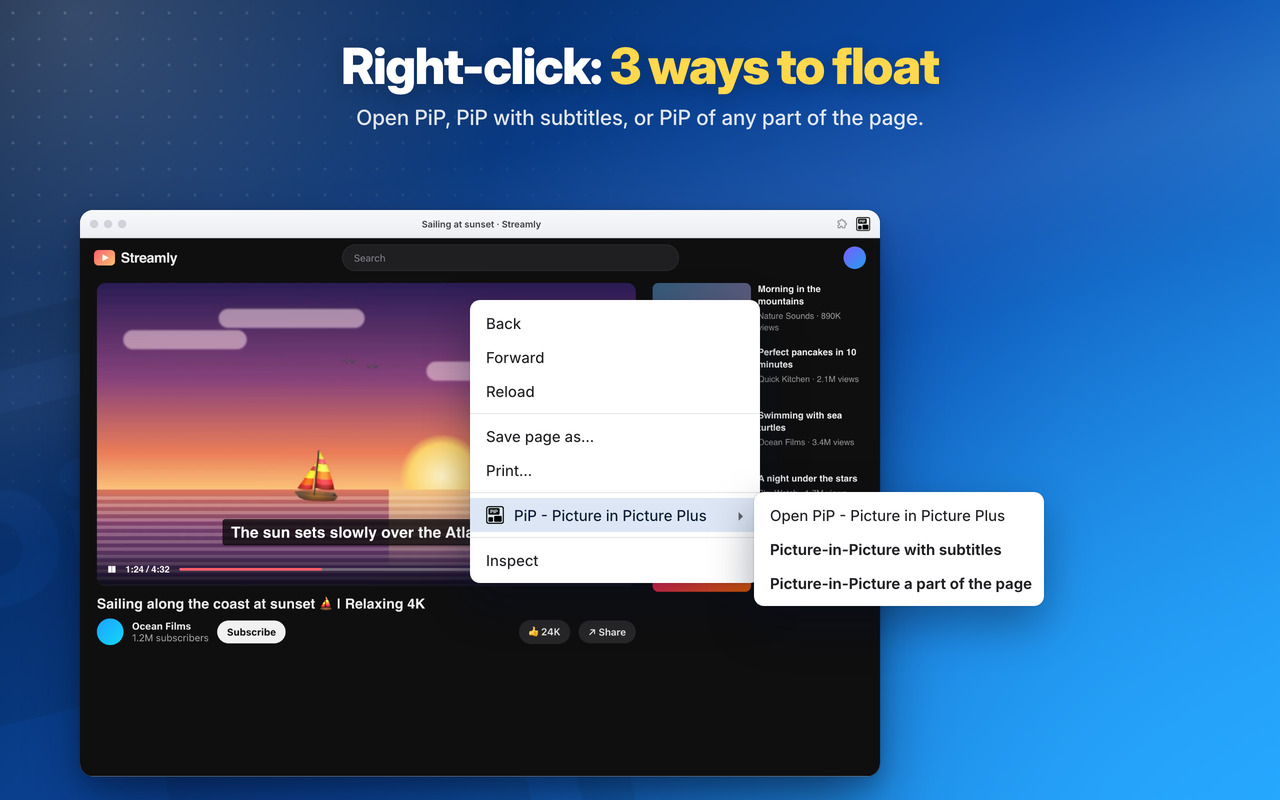
- A right-click menu on any page to open Picture in Picture.
- Always the right video: the one playing on screen, otherwise the most visible one, otherwise the largest.
- A one-click button appears when a page wants you to click before a video can float.
- Resize and move the floating window anywhere, and keep using the original tab, or any other, meanwhile.
In Chrome and Edge it goes further, with two modes the browser itself does not offer:
- Picture in Picture with subtitles: the site’s whole player, with its subtitles and controls, floats in the small window.
- Picture in Picture of a part of the page: point at it and click, for live scores, a chat, a recipe or a table you want to keep in sight (the up arrow takes a bigger part, Esc cancels).
How to start, in three steps
- Add PiP – Picture in Picture Plus to your browser from its store (the buttons are below).
- Open a page with a video and start playing it.
- Click the extension’s icon or press Alt + I. The video jumps into its floating window; drag it to a corner and keep working.
The short video below shows it in action:
The browser alone, or with the extension?
A quick comparison of what you get:
| The browser alone | With PiP – Picture in Picture Plus | |
|---|---|---|
| How to start | A menu or a button, when the site shows it | One click on the icon, Alt + I, or the right-click menu |
| Which video | Depends on the site | The one playing, else the most visible, else the largest |
| Subtitles in the window | Often not | Yes, with the whole player (Chrome and Edge) |
| A part of the page | No | Yes: scores, a chat, a recipe (Chrome and Edge) |
Tips for work and study
- Put the floating window in a corner you rarely use, such as the top right, so it never covers what you type.
- Make it small for a talk or a podcast-style video, and bigger for a match or a film.
- For a lesson with subtitles, use Picture in Picture with subtitles in Chrome or Edge so you can still read them.
- Following a live score or a chat? Float just that part of the page instead of the whole tab.
Conclusion
Picture in Picture is one of those small things that changes how you use the computer: the video keeps going, and you keep working. With PiP – Picture in Picture Plus it is always one click or one shortcut away, on any site with a video.
It is free in Chrome, Microsoft Edge and Firefox. See all the details on its project page, or explore what Premium adds to our extensions.
Looking for more? Browse all our extensions for Chrome, for Edge and for Firefox.