
If you type “Hangouts extension” into a search box, you are not alone: many people still look for the quick chat window that lived in a corner of the browser. Google Hangouts is gone, but what it did is still there, split into two services: Google Chat for messages and Google Meet for calls and video meetings.
In this post we explain where your conversations are now, and how our free extension Chat and Meet for Google brings both back into one compact window, like a desktop app, in Chrome, Microsoft Edge and Firefox.
What happened to Hangouts
Google retired the classic Hangouts and moved people to two separate services. Google Chat took over messaging: one-on-one conversations, group chats and “spaces” for teams, with file sharing. Google Meet took over calls and video meetings, which you start or join with a code or a link.
Both work in the browser, and both use your Google account, so your contacts are still there. The difference is that they are now two websites, often in two tabs, easy to lose among everything else you have open.
Chat and Meet in one window
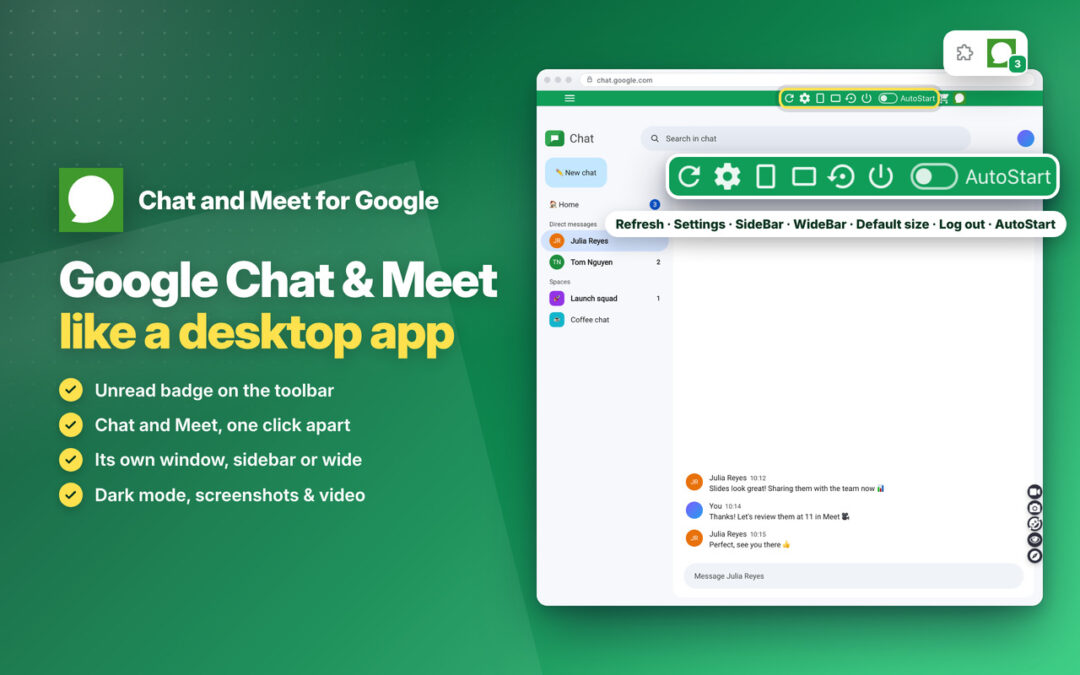
Chat and Meet for Google opens Google Chat and Google Meet in a compact window of their own, a click away from the toolbar. It uses the sites’ mobile view, which is cleaner and lighter on CPU, memory and network than a full browser tab. It is our own extension, not made by Google; you sign in with your Google account as usual.
- Chat: one-on-one and group messages, spaces for your team, and file sharing.
- Meet: video calls and meetings, joined with a code or a link.
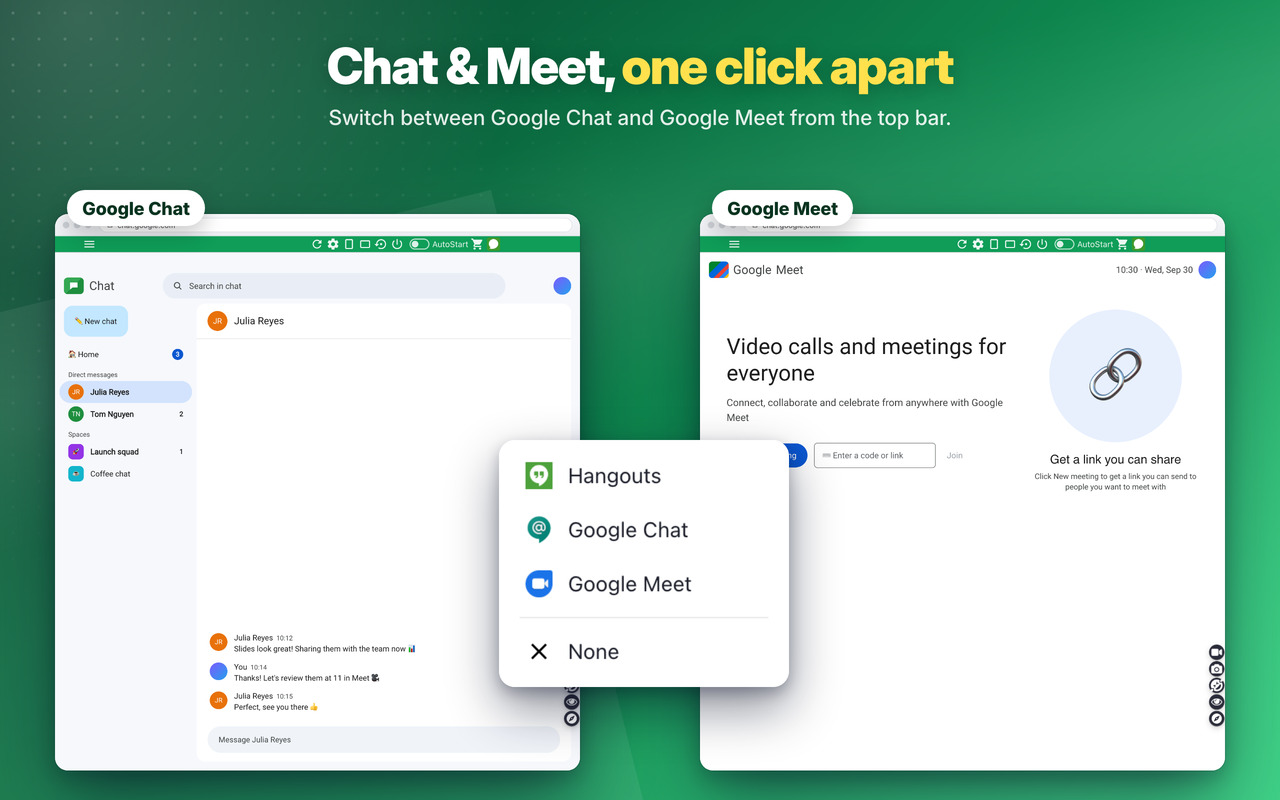
- Switch between Chat and Meet from the top bar or the side menu.
- The badge on the icon shows your new conversations.
- Work and personal accounts side by side: a second window, or two accounts at the same time.
- SideBar or WideBar in one click, a dark mode, nine skins, an emoji keyboard, a window screenshot and a short recording of the window.
- Auto-start with the browser, and right-click a link to open it there.
How to start, in three steps
- Add Chat and Meet for Google to your browser (the buttons are below).
- Click its icon on the toolbar: Google Chat opens in its own window. Sign in with your Google account if asked.
- Use the top bar to switch to Google Meet when you need a call, and pin the icon so new conversations are always in sight.
Here is a short tour:
Then and now
If you used Hangouts for years, this is where everything went:
| What you did | Then (Hangouts) | Now |
|---|---|---|
| Chat with a person | Hangouts conversation | Google Chat, direct message |
| Chat with a group | Hangouts group | Google Chat group or space |
| Video call or meeting | Hangouts video call | Google Meet, with a code or a link |
| Keep it one click away | The Hangouts extension | Chat and Meet for Google, in one window |
Tips for work
- Use the SideBar size to keep Chat open next to a document while you work on it.
- Open a second window with your other account, so work and personal chats never mix.
- Turn on auto-start, so the window is ready when the browser opens.
- Before a meeting, switch to Meet from the top bar and join with the code you received.
Conclusion
Hangouts may be gone, but the habit of having your conversations one click away does not have to go with it. With Chat and Meet for Google, Google Chat and Google Meet live together in one light window, ready when you are.
It is free in Chrome, Microsoft Edge and Firefox. Find every detail on its project page, or see what Premium adds.
More tools for calls and messages: browse all our Chrome extensions or read our blog.