
Browser Extension 💻 Win/Mac/Linux for X Calls, Google Meet, Webex and more
Video calls 🎥
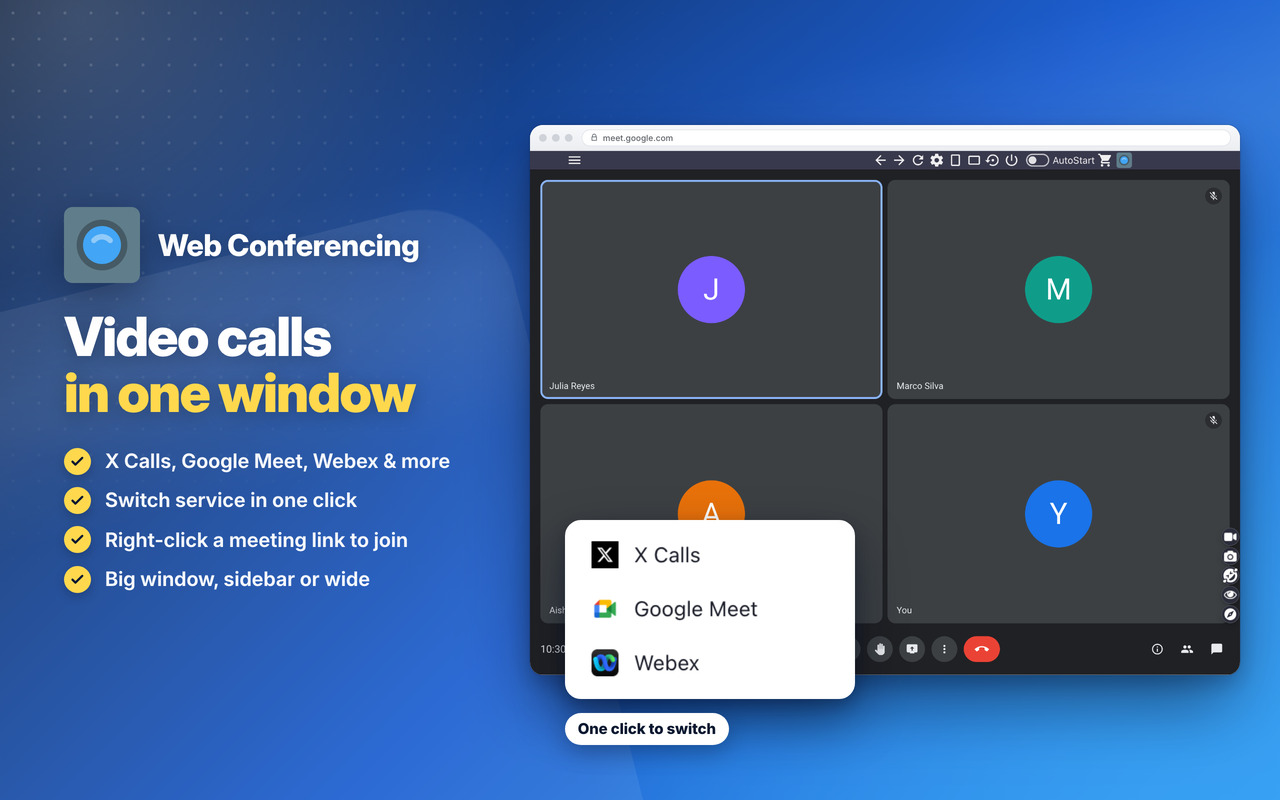
X Calls, Google Meet, Webex and more in one window, like a desktop app 🎥
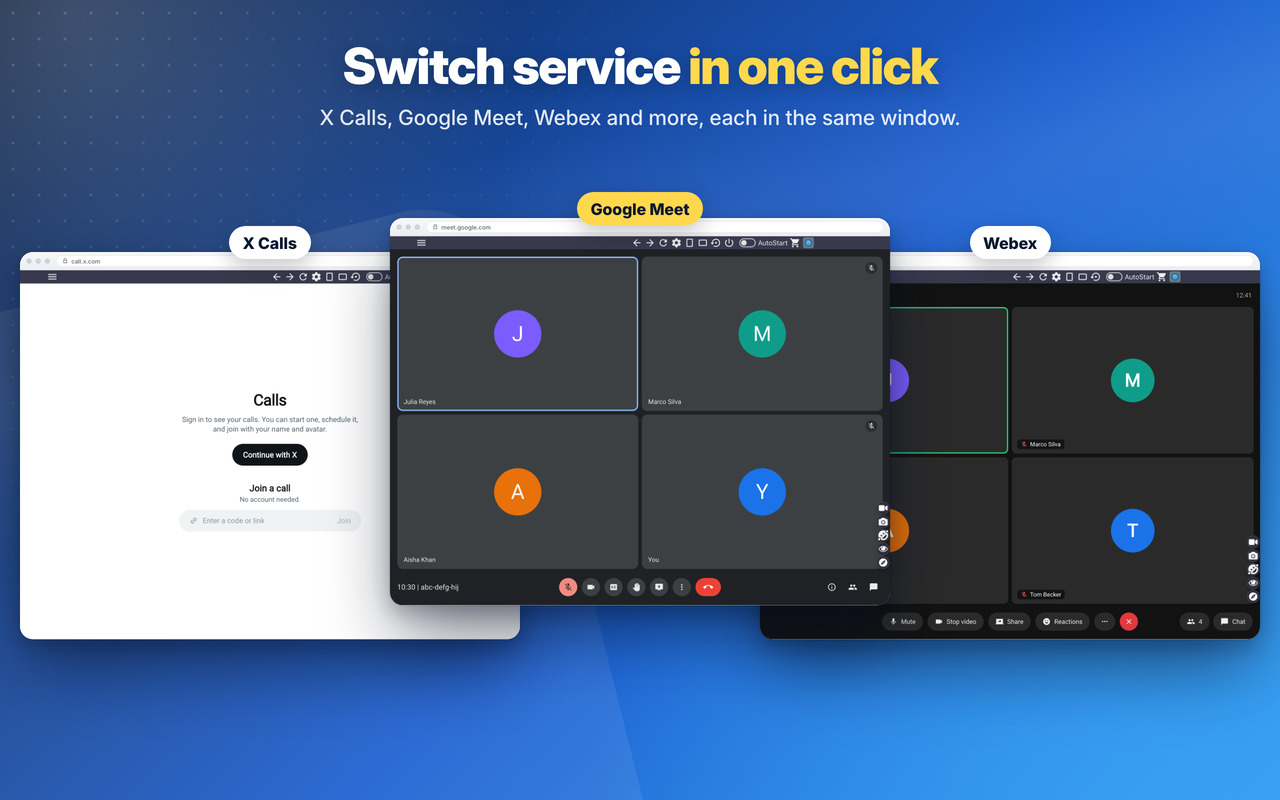
Switch between them in one click from the top bar or the side menu 🔁
Sidebar ⭐
Put the window where you like: its size and place are saved for next time 🚨
SideBar or WideBar in one click, and back to the default size in one more 📐
Security 🔒
You sign in directly on each official site, for maximum security: no passwords shared with third-party apps 🔑
Settings 🚧
Auto-Start with the browser (On/Off), back/forward and Refresh buttons 🌝
In the side menu: NEW Dark Mode, 9 skins, 2 accounts side by side, Incognito, screenshot and video of the window ✨
Switch service in one click 🔁
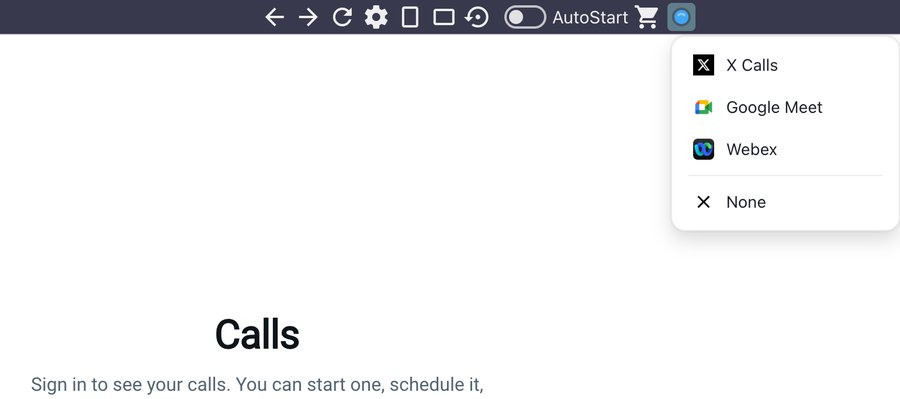
Meetings in a window 📹
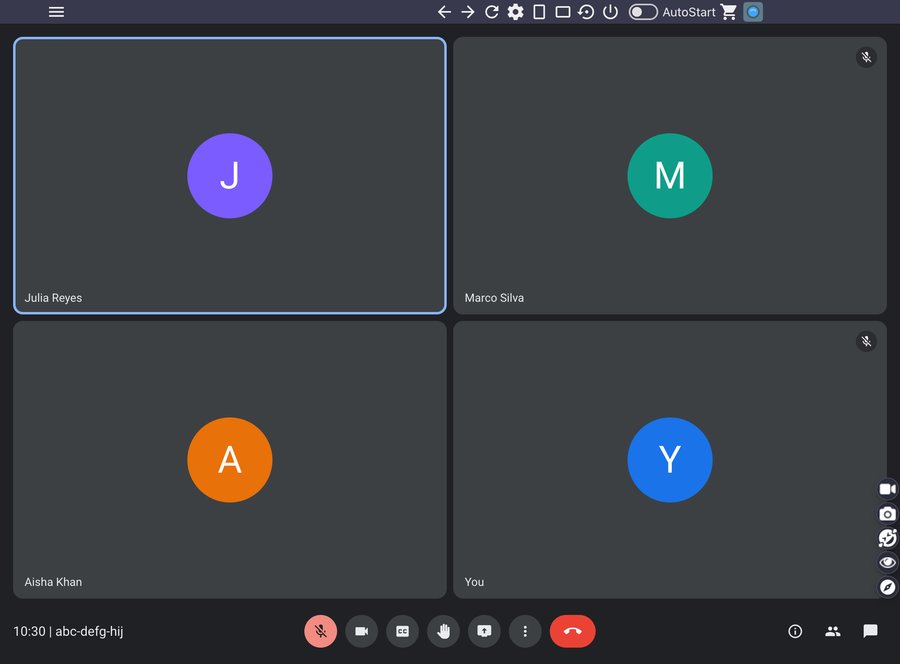
Minimalistic Design
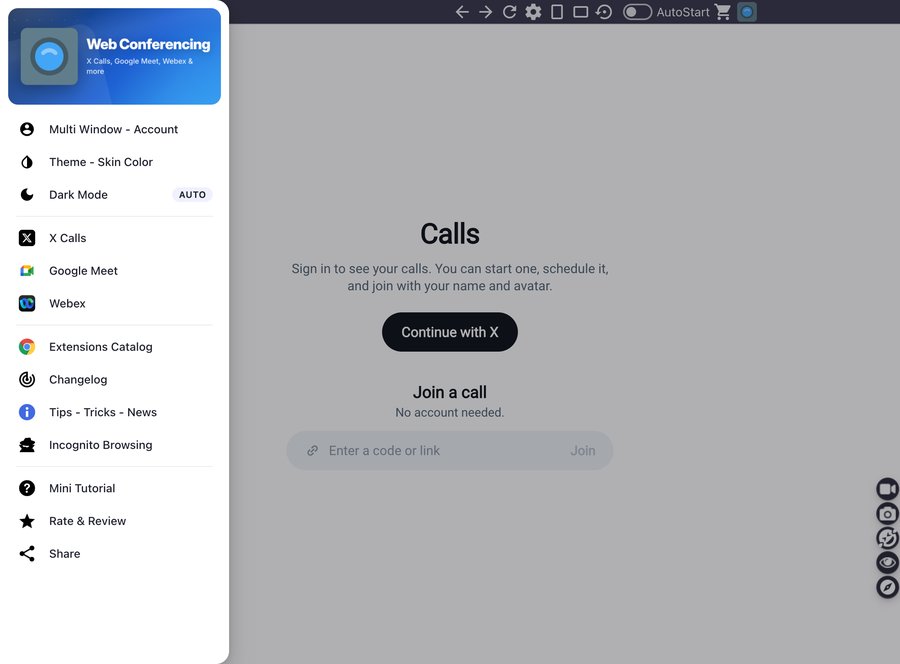
Multi Window - Account 👥
A second window, or 2 different accounts at the same time, side by side 👥
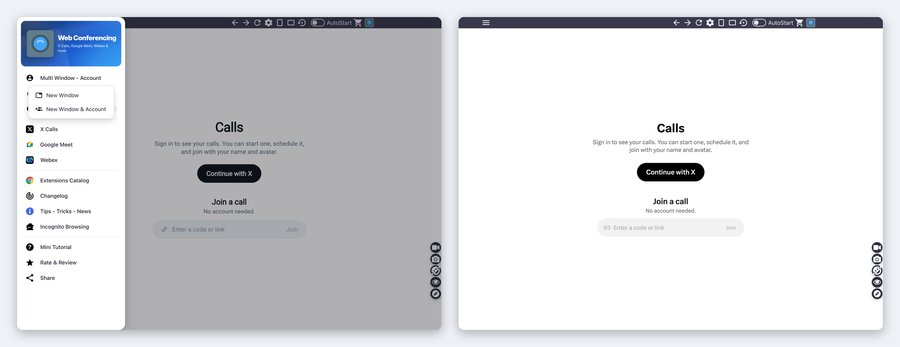
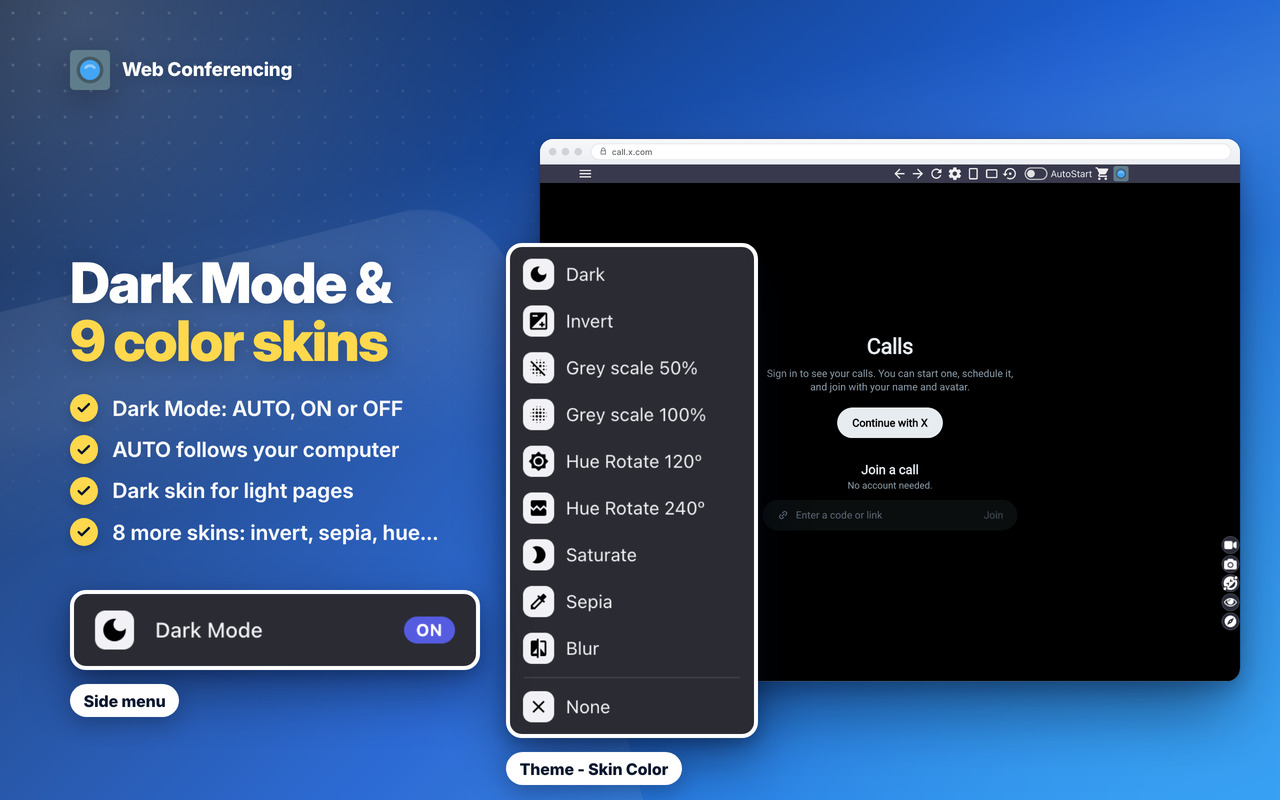
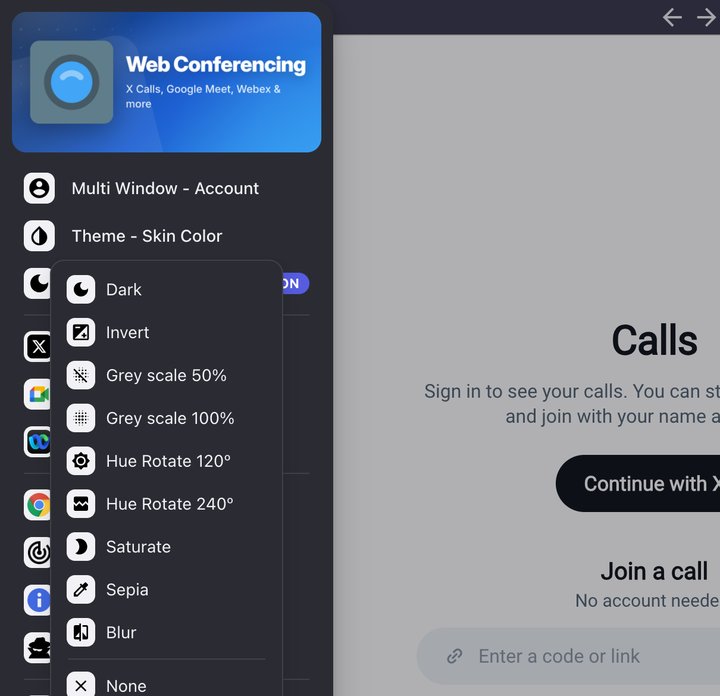
Theme - Skin Color and Dark Mode 🌙
9 skins, including the NEW Dark skin, and NEW Dark Mode: AUTO (like your computer), ON or OFF 🎨
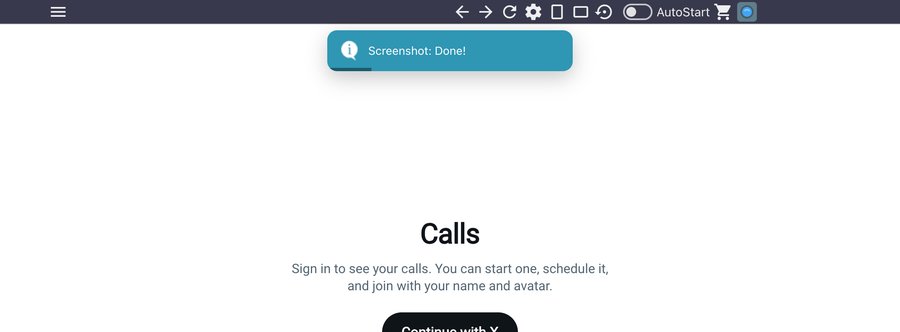
Window Screenshot 📷
Save the whole window as an image in one click 📷
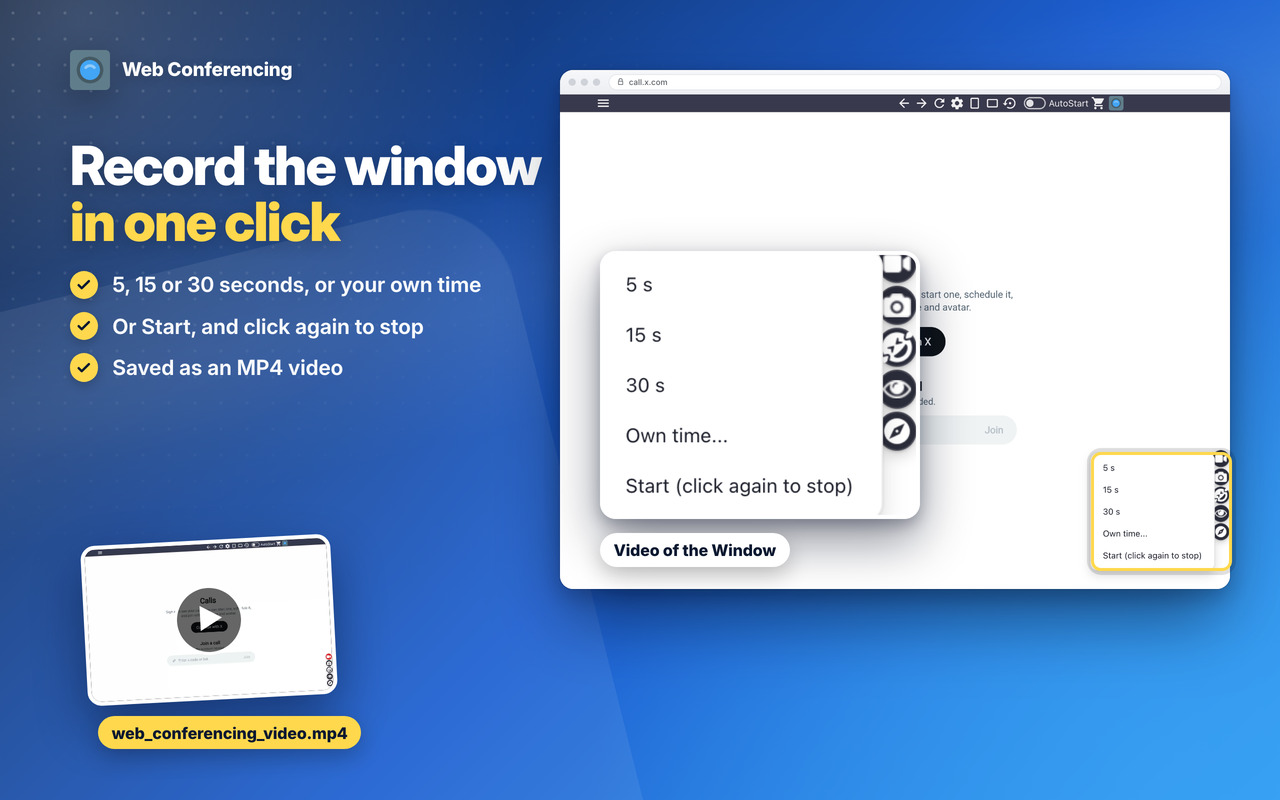
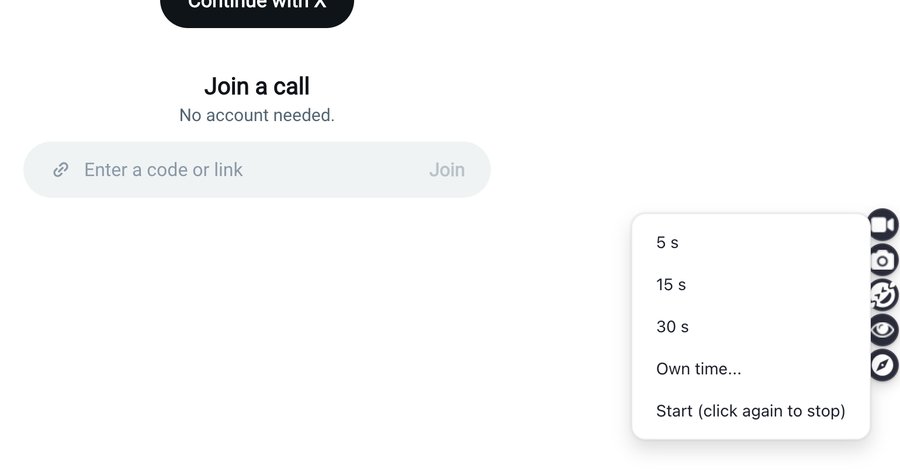
Video of the Window 🎥
Record it for 5, 15 or 30 seconds, or your own time, saved as MP4 🎥
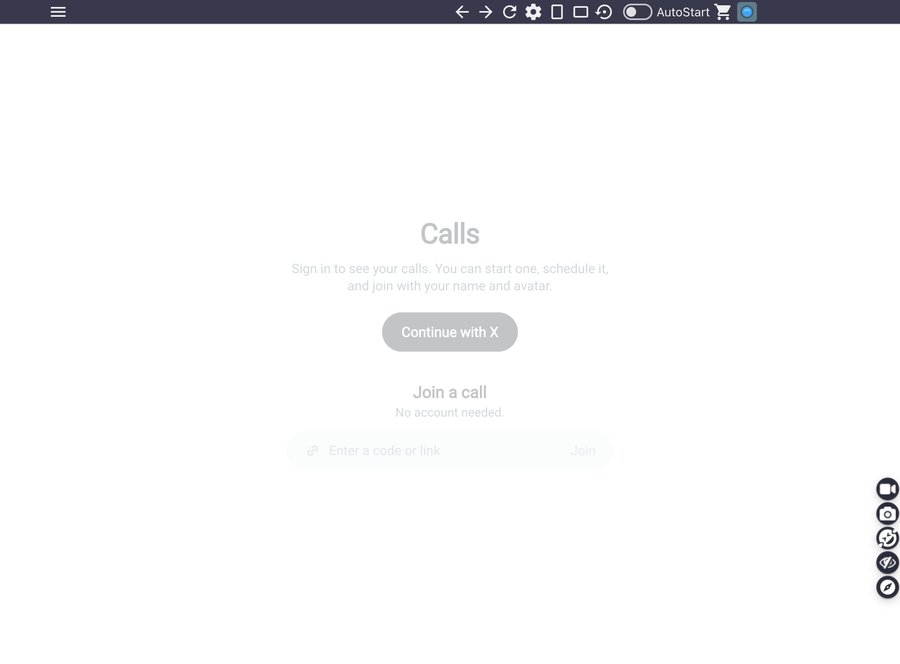
Incognito mode 🕶️
The page stays dimmed until you point at it 🕶️
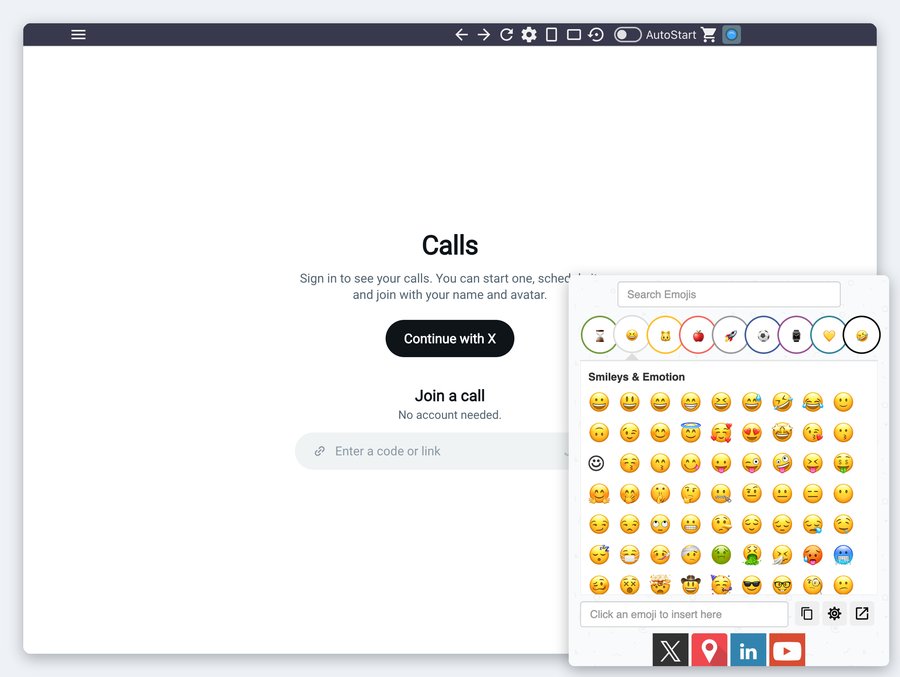
Emoji Keyboard 😀
Put emojis in your messages in one click 😀
Changelog
v6.0 - 10/10/2026
⭐ NEW name: Web Conferencing, with X Calls, Google Meet, Webex and more in one window
🔁 NEW service switcher: change service in one click from the top bar or the side menu, and the window opens on the last one you used
🔗 Right-click a meeting link › “Open in Web Conferencing” joins it in the window
✨ NEW modern look: rounded side menu, menus, messages and mini tutorial, cleaner top-bar buttons in the same places and sizes, the same on every site
🌙 NEW Dark Mode in the side menu: AUTO (like your computer), ON or OFF
🌑 NEW Dark skin: makes light pages dark and leaves dark pages as they are
📐 NEW top-bar button: the window goes back to its default size and position in one click
🖥️ The window grows on bigger screens (1440p, 4K), in its usual place
🛟 Safer window: if a monitor is unplugged or the place doesn’t fit, the window opens on the main screen instead of not opening
🎥 NEW Video of the window: 5, 15 or 30 seconds, your own time, or start and stop yourself (saved as MP4)
🎓 The mini tutorial now shows every option: the side menu (Theme – Skin Color, Multi Window – Account, Incognito, Changelog…) and the new buttons, without scrolling the page
🔄 Edge: after an update or a restart, the open window shows “click here to reload”, so the top bar keeps working
👥 NEW “New Window & Account”: open a second window with another account, side by side (allow the extension in private windows: “Allow in InPrivate” on Edge, “Run in Private Windows” on Firefox)
🦊 Firefox: NEW “New Window” too, a second window of the same account
🪟 New Window opens a little to the side, so you see both windows
🎨 Theme – Skin Color reworked: the skin covers the whole site while the top bar and menus keep their colours, “None” really clears it and “Invert” is now a real dark mode 🌙
🖼️ News & Tips: pictures load on every site and the messages show at most once a day
🔒 Security improvements and no more warnings on the extension’s Errors page
OLDER
v5.5 – 01/06/2024
⚡ Updated Jquery from 3.6.4 to 3.7.1
⚡ Updated introJS from 6.0.0 to 7.2.0
🦊 Some improvements for Firefox version of the extension
v5.4 – 26/03/2024
🔗 Fixed Chrome links for the new WebStore Link format from chrome.google.com/webstore to chromewebstore.google.com => https://chromewebstore.google.com/detail/fhkobjnjacoagijjflgogcheokeijiag
💻 Fixed window size that was getting bounds.height instead of workArea.height. The window was resized behind Windows and MacOs taskbar. Now it will get the available working area of the screen and the Extension window will be more perfectly positioned 👍
🐞 Some bugfixes and improvements
v5.3 – 16/02/2024
🚨 Updated to simpler interface. Big improvements.
v5.2 – 10/04/2023
🚧 Updated Jquery library to v3.6.4
🚨 Updated IntroJs library to v6.0.0
😁 Updated Jquery-ContextMenu library to v2.9.2
💬 Updated Toastr library to v2.1.4
v5.1 – 03/02/2023
🚧 Microsoft Edge now with manifest V3
💎 Faster performance and bug fix
v5.0 – 16/05/2022
🧊 Fixes some bugs and performance improvements.
💣 Fixed some interface issues.
🚧 Major improvements on Edge and Firefox browser extension
💎 Use Firefox or Edge Browser for the best performance and latest features 💎
v1.0 – 20/05/2020
🚨 First Release
