Easy PDF Editor · Browser Extension 💻 Win/Mac/Linux
Easy PDF Editor 📌

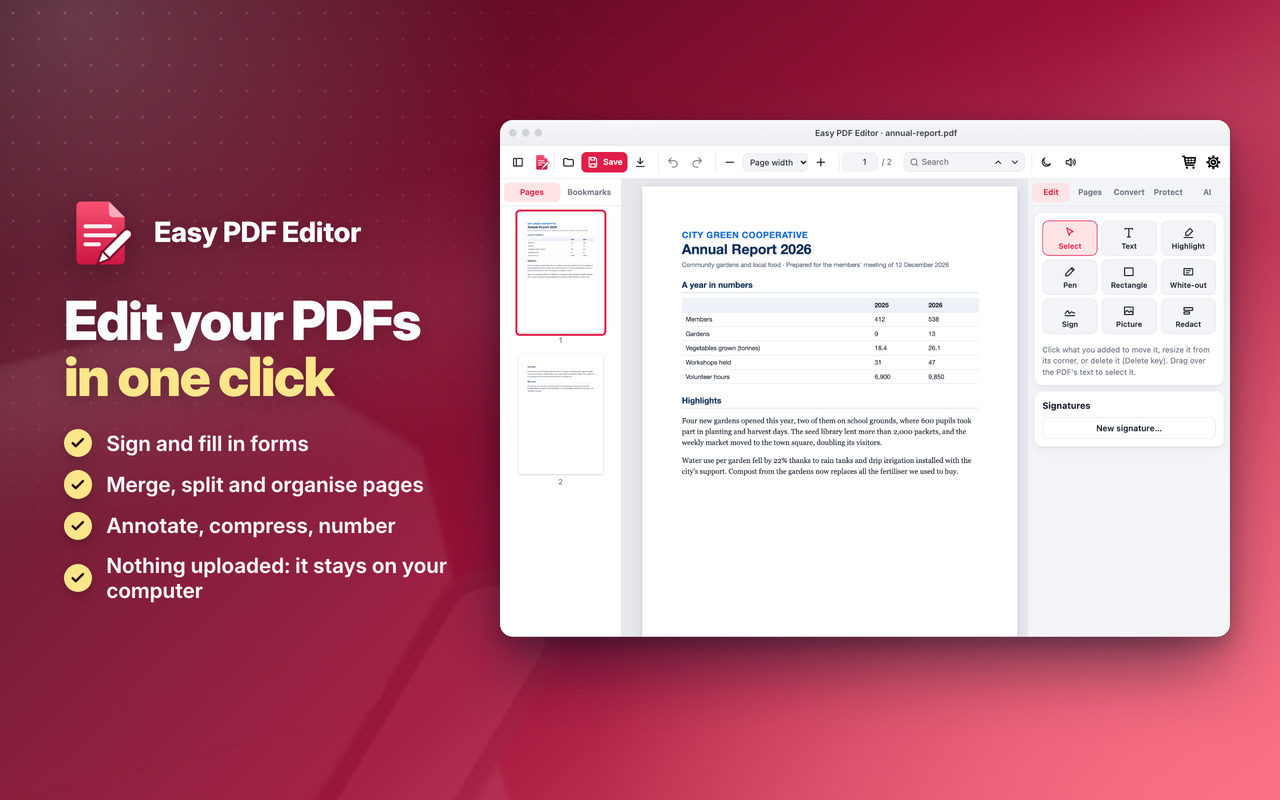
Edit your PDFs in one click 📌 right on your computer, nothing uploaded: sign, fill in forms, merge, split, annotate and compress 🚨

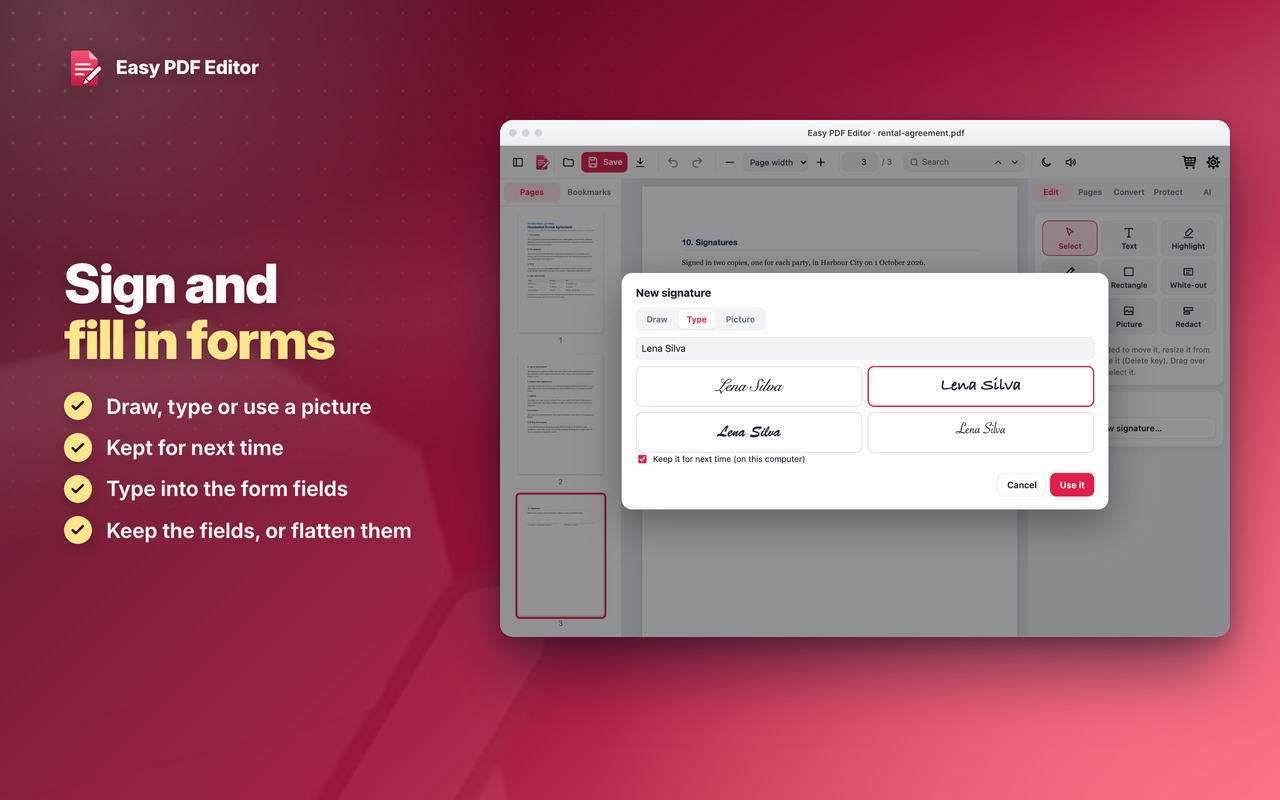
Sign and fill in forms ✍️

Fill in the form's fields, draw or type your signature or use a picture of it, and save into the same file 💾

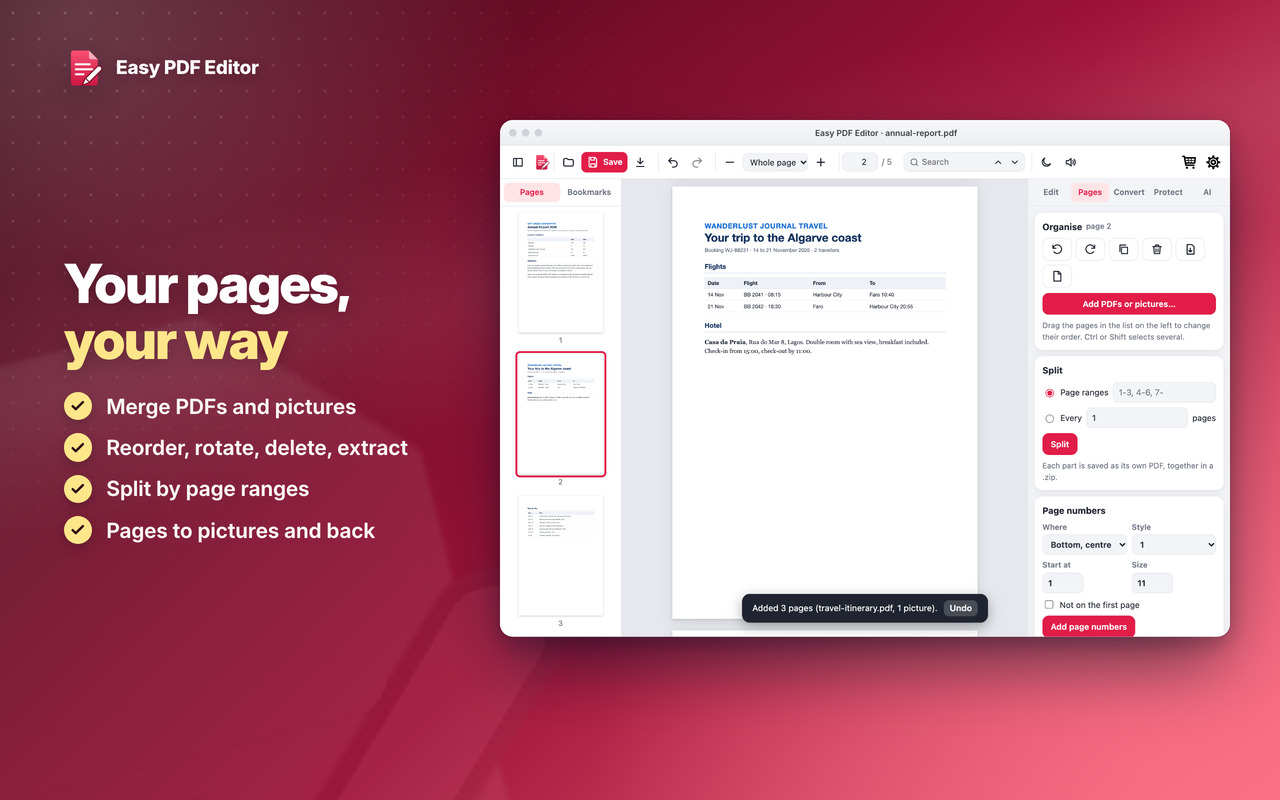
Pages your way 🧩

Merge your tickets into one file, pull out the pages you need, reorder, rotate, delete; pictures to PDF and back 🖼️

Private 🔒

Your files never leave your computer: no upload, no account, no daily limits and no watermark on your files 🙂


Sign a contract, fill in a form

Fill in the fields, draw or type your signature, and save into the same file ✍️
Easy PDF Editor: Sign a contract, fill in a form

Your pages, your way

Merge PDFs and pictures; reorder, rotate, delete, extract and split pages 🧩
Easy PDF Editor: Your pages, your way

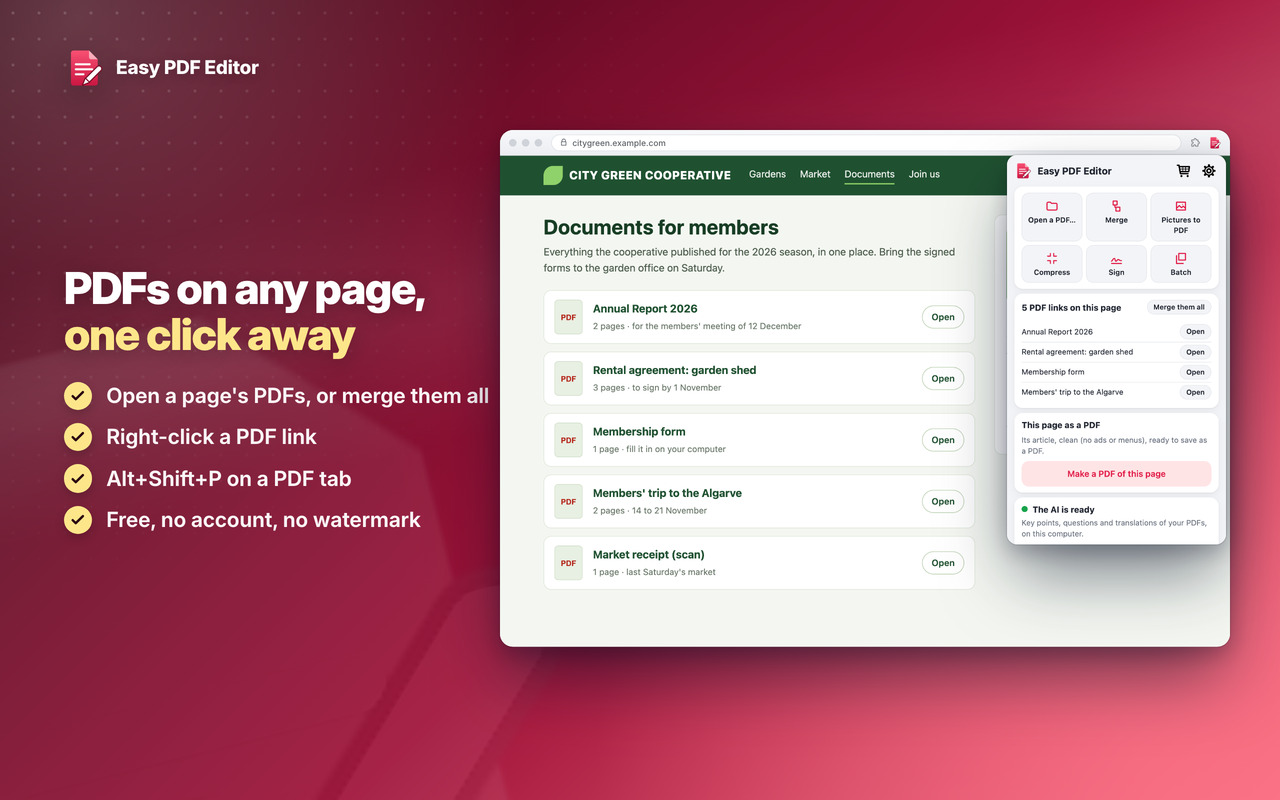
PDFs on any page, one click away

Open a page’s PDFs or merge them all, right-click a PDF link, or Alt+Shift+P on a PDF tab 🔗
Easy PDF Editor: PDFs on any page, one click away

Download

Coming Soon!

Coming Soon!

Coming Soon!

Easy PDF Editor

Premium

Two levels, in all our extensions: Premium Level 1 is free with any 3 of them installed, Premium Level 2 is €20 a year or €50 once.

Checkout shows the price in your own currency. Then, on the Premium page of any of our extensions (Premium Features in its menu, or its cart icon), click Already paid? Restore your purchase.
Premium Level 1

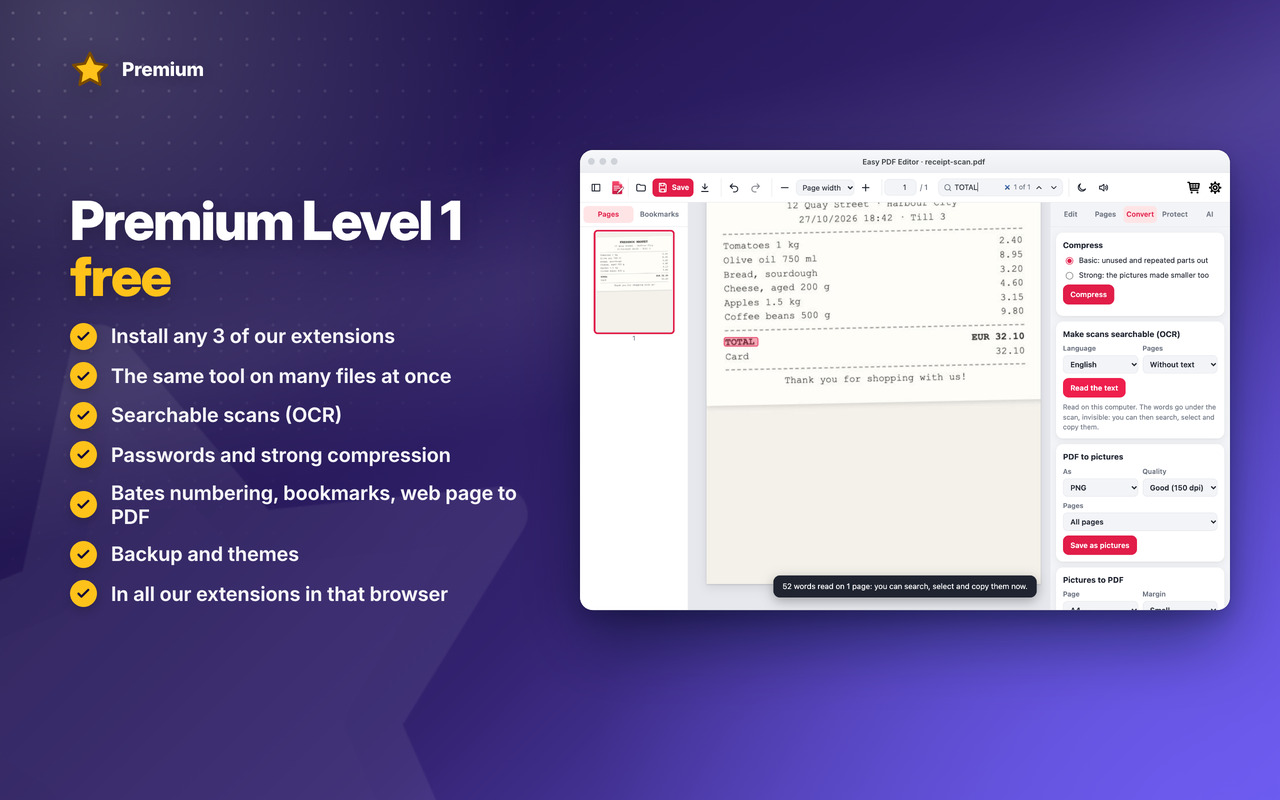
Premium Level 1 · free

With any 3 of our extensions installed, in that browser:

  • Batch
  • Strong compression
  • Passwords
  • Searchable scans (OCR)
  • Bookmarks and document info
  • Watermark presets
  • Bates numbering
  • Web page to PDF
  • Ask this PDF (not in Firefox)
  • Translate the whole document (not in Firefox)
  • Backup & restore
  • Themes
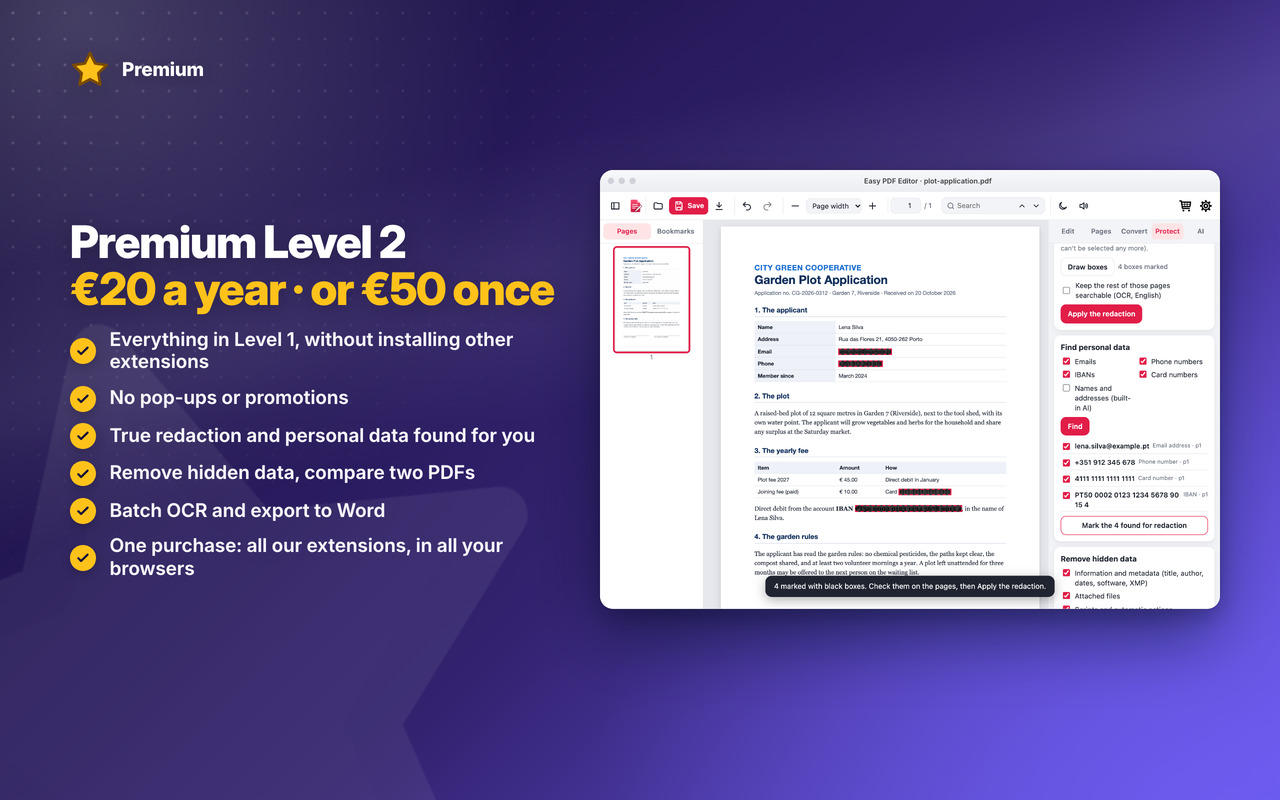
Premium Level 2

Premium Level 2 · €20 a year or €50 once

  • Everything in Level 1, without installing other extensions
  • No pop-ups or promotions
  • True redaction
  • Find personal data
  • Remove hidden data
  • Compare two PDFs
  • Export to Word
  • Batch OCR
  • Premium in all our extensions, in Chrome, Edge and Firefox, with one purchase
  • Early access to new features
  • Priority support by email
  • New Premium features included
Searchable scans (OCR)
Passwords
True redaction

See all Easy PDF Editor Premium features →


Changelog

v1.2 31/10/2026

🎉 First version: read, sign, fill in forms, merge, split and annotate your PDFs, right on your computer, nothing uploaded
🧩 Pages: merge, split, reorder, rotate, delete and extract; pictures to PDF and pages to pictures
📉 Compress, page numbers and a watermark; save into the same file or download a copy
🌙 Dark reading mode and read aloud; it reopens at the last page you read
🔗 Right-click a PDF link: Open with Easy PDF Editor · Alt+Shift+P
⭐ Premium Level 1: many files at once, strong compression, passwords, searchable scans (OCR), web page to PDF, Bates numbering, bookmarks, backup, themes
👑 Premium Level 2: true redaction, find personal data, remove hidden data, compare two PDFs, batch OCR, export to Word



Permissions

Browser Extension 💻 Win/Mac/Linux
  • “storage” – Used to save settings on your local computer: your choices, your saved signatures, your watermark presets and the list of recent files (names only).
  • “unlimitedStorage” – Storage is limited to 10MB of data that may not be enough to store all configs: your signatures, presets and the place to reopen each document.
  • “downloads” – Used to save the PDFs and pictures you make to your Downloads folder, with the name you choose.
  • “contextMenus” – Allows adding more settings when you right-click a PDF link or a PDF tab (Open with Easy PDF Editor) and when you right-click the App icon in the browser toolbar (Rate, Go Premium).
  • “notifications” – Used to send desktop notifications. For example when a long job (text recognition, a batch) is finished, or when the App is updated.
  • “alarms” – Used for the jobs that run in the background on time, such as cleaning the temporary files of unfinished jobs.
  • “scripting” – Used to be able to insert JS in the page you are on: to find its PDF links (open or merge them) and to make a clean PDF of the page.
  • “tabs” – Used to read the address of the tab you are on, to open its PDF in the editor (popup, right-click, Alt+Shift+P), and to open the editor in a tab.
  • “system.display” – Used to detect the display size to open the editor's windows at a size that fits your screen.
  • “declarativeNetRequest” – Used for the setting "Open PDF links in Easy PDF Editor" (off at first): the PDF links you click open in the editor instead of the browser's own viewer.
  • “host_permissions” – Permission to access all hosts/domains, because PDFs can be on any site: the editor must be able to open a PDF from its link or from the tab you are on, and find the PDF links of a page. Your files are never uploaded. Also used to show the Tips – Tricks – News and to allow intercommunication with other Oinkandstuff Apps.
  • “all_urls” – We cannot predict ahead of time which sites you will visit, so the extension works on any page.
  • 🐗 #OinkAndStuff is certified as 100% Free of malware 🐞 by Softpedia Labs 🔬