
Multi AI Sidebar · Browser Extension 💻 Win/Mac/Linux
Fast switching 🚨
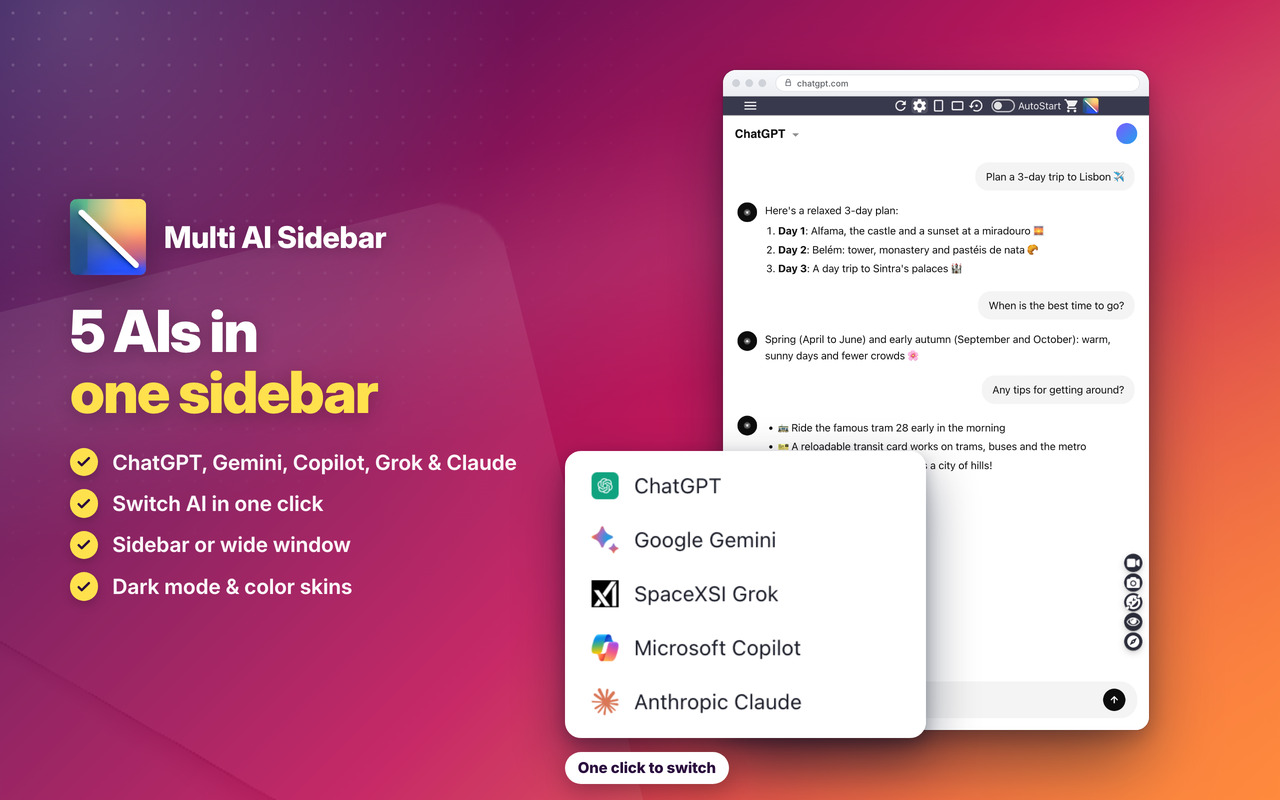
5 AIs in a single sidebar 😱 Switch AI in one click from the top bar 🚧
Unified AI App 🦇
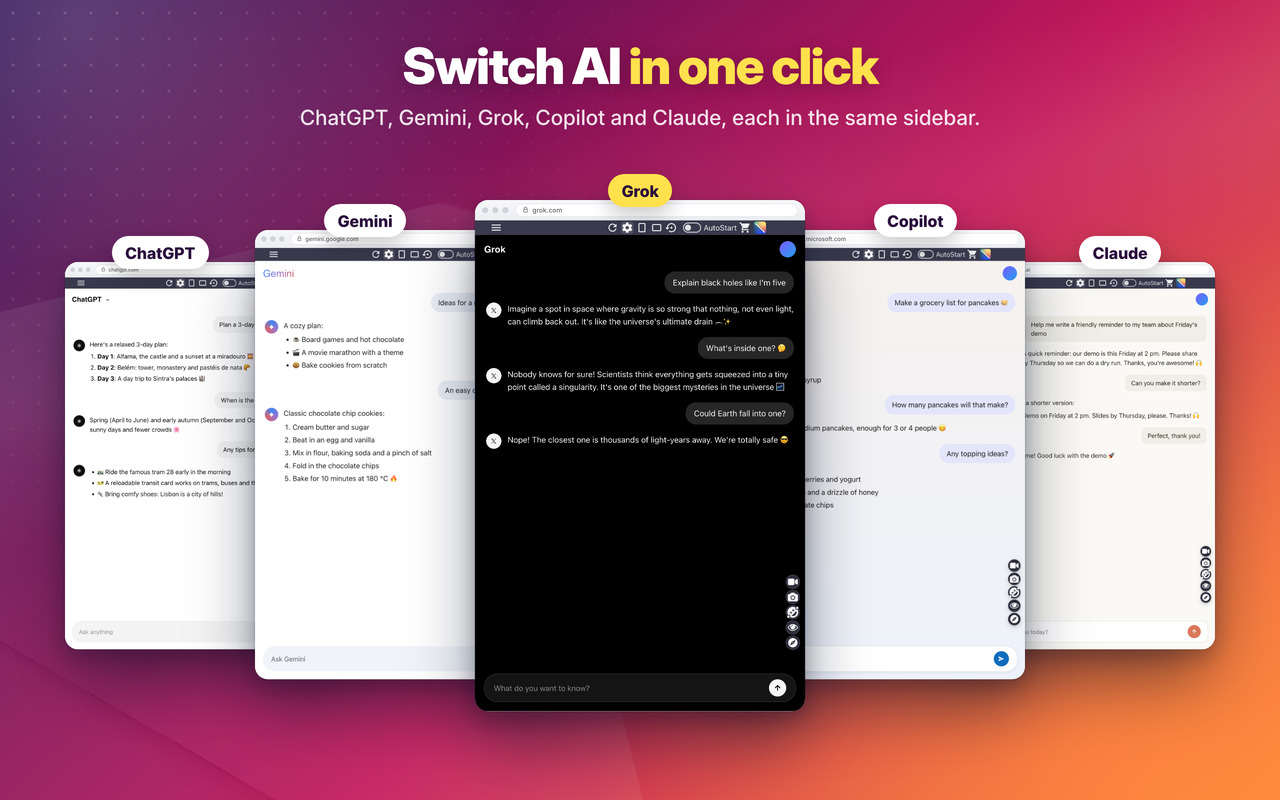
Ask ChatGPT, then get a second opinion from Claude or Gemini in one click 🚨 Or open 2 AIs side by side to compare 🔥
Anthropic Claude 🧲
Great at writing, long documents and code, with careful, thoughtful answers 🔥
OpenAI ChatGPT 💧
The all-rounder for writing, ideas, explanations and images 👓
Microsoft Copilot 📷
Answers from the web with their sources, and free image creation 🔨
Google Gemini 💬
Google’s AI, great for up-to-date answers, images and long documents ⭐ All your chats in a minimalist interface 🛴
Multi AI 🤓
Available AI: ChatGPT, Gemini, Copilot, Grok and Claude, plus Image Creator, Designer and Magic Studio for images 👑
SpaceXSI Grok 🔥
Real-time news and trends from X, with a sense of humour 😍
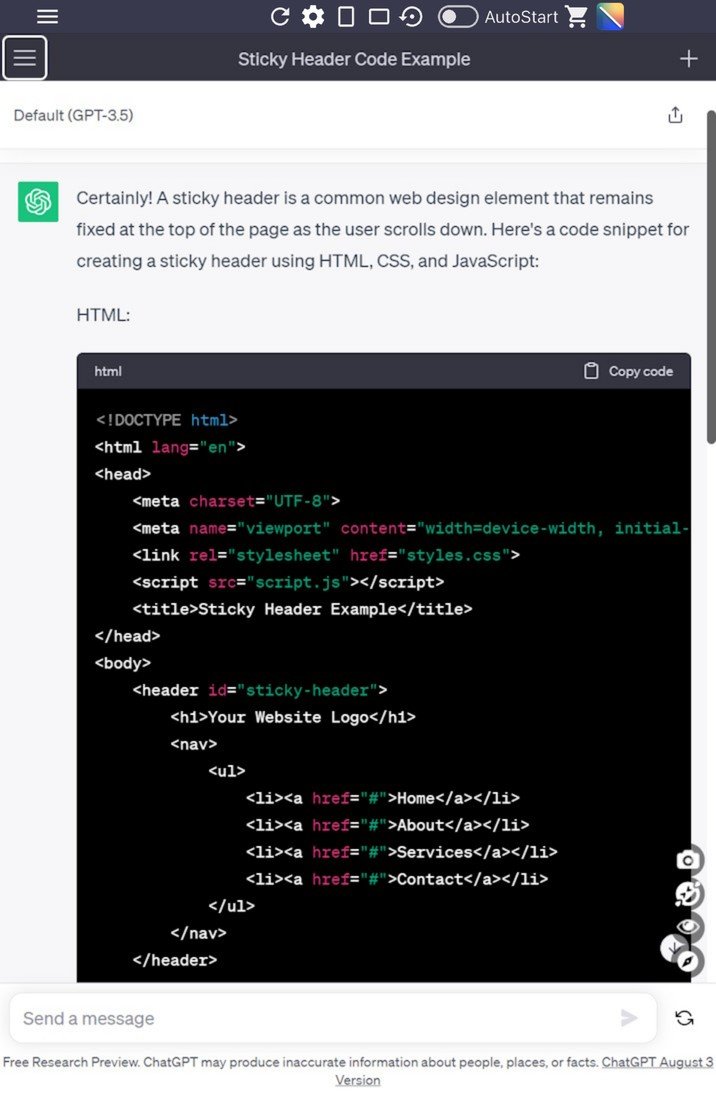
OpenAI ChatGPT 📌
Access the latest GPT models ⭐🥊
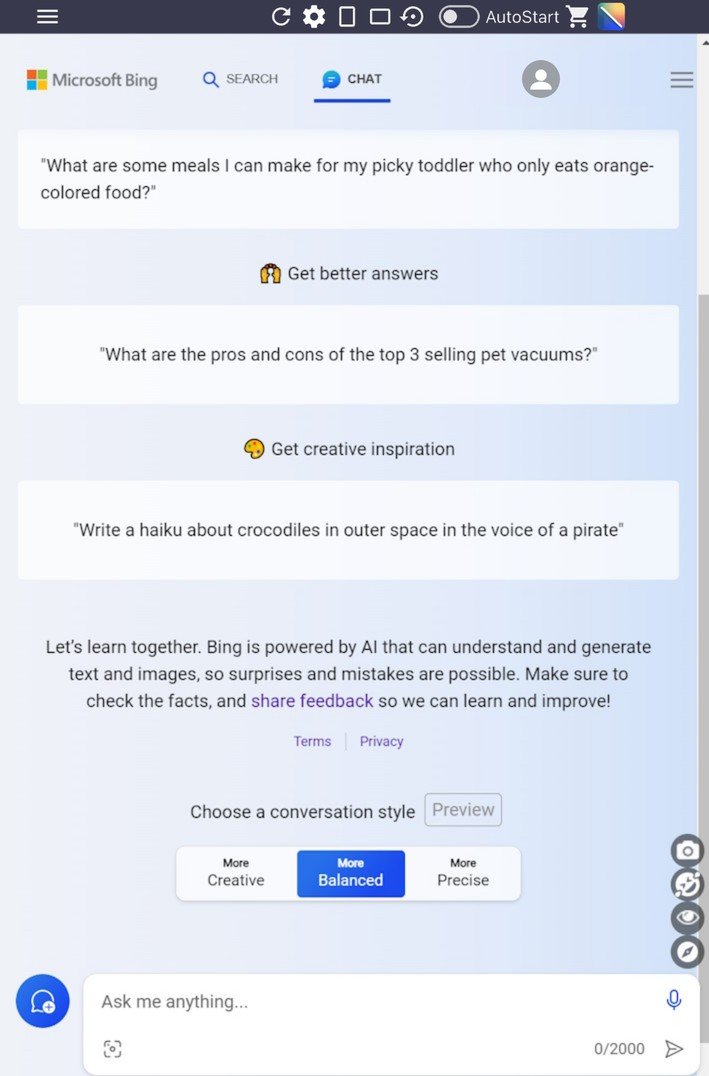
Microsoft Copilot 👑
Use Microsoft Copilot on Chrome or Firefox 🛑 with answers from the web 🌃 and no need to use Microsoft Edge
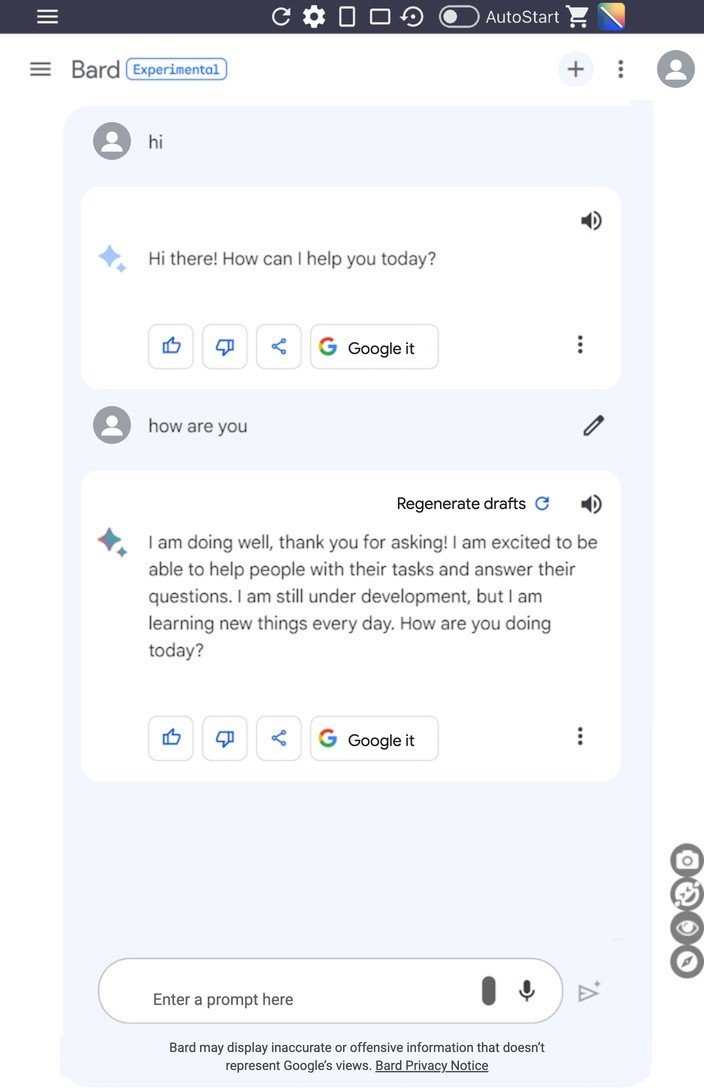
Google Gemini 💎
Google AI available for Chrome, Edge and Firefox
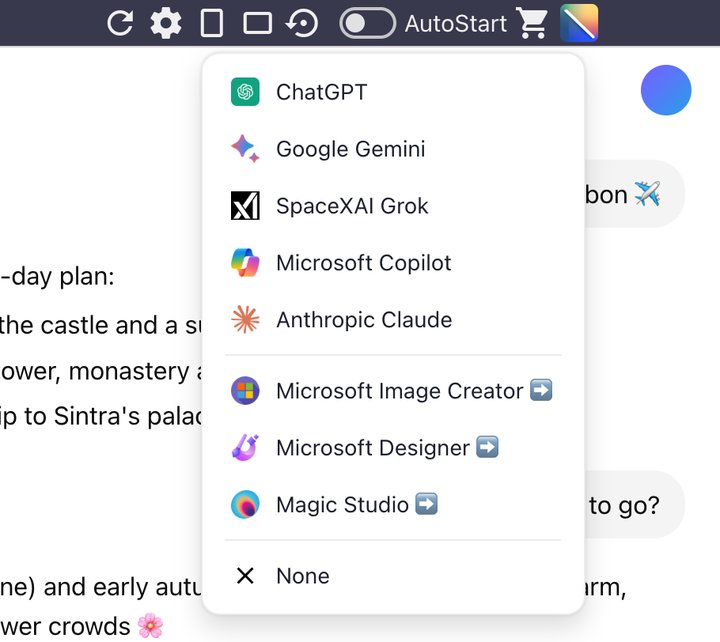
Switch AI in one click 🔁
ChatGPT, Gemini, Copilot, Grok and Claude, plus Image Creator, Designer and Magic Studio, one click apart in the top bar 🔁
Multi Window - Account 👥
A second window, or 2 different accounts at the same time, side by side 👥
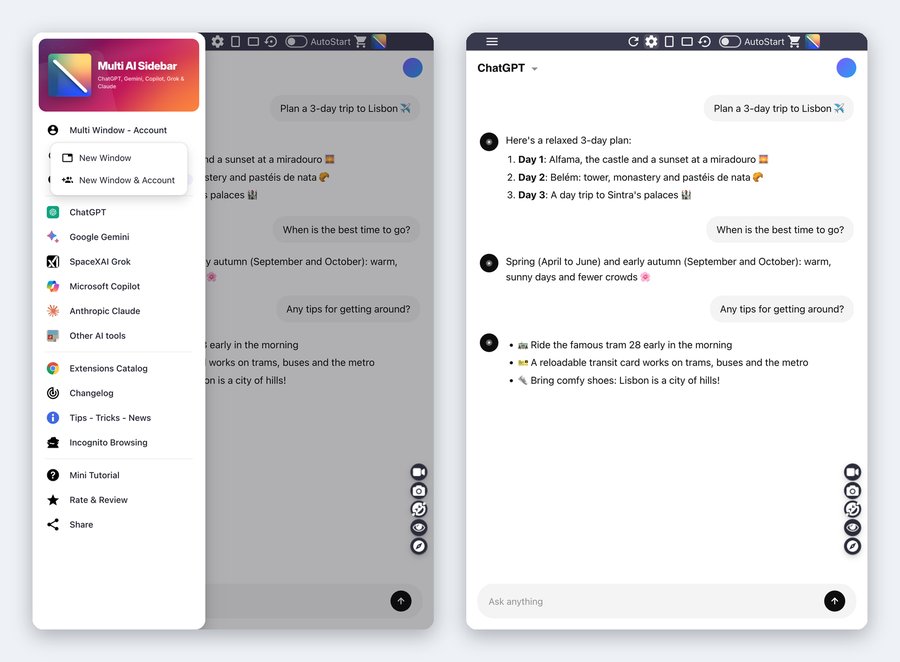
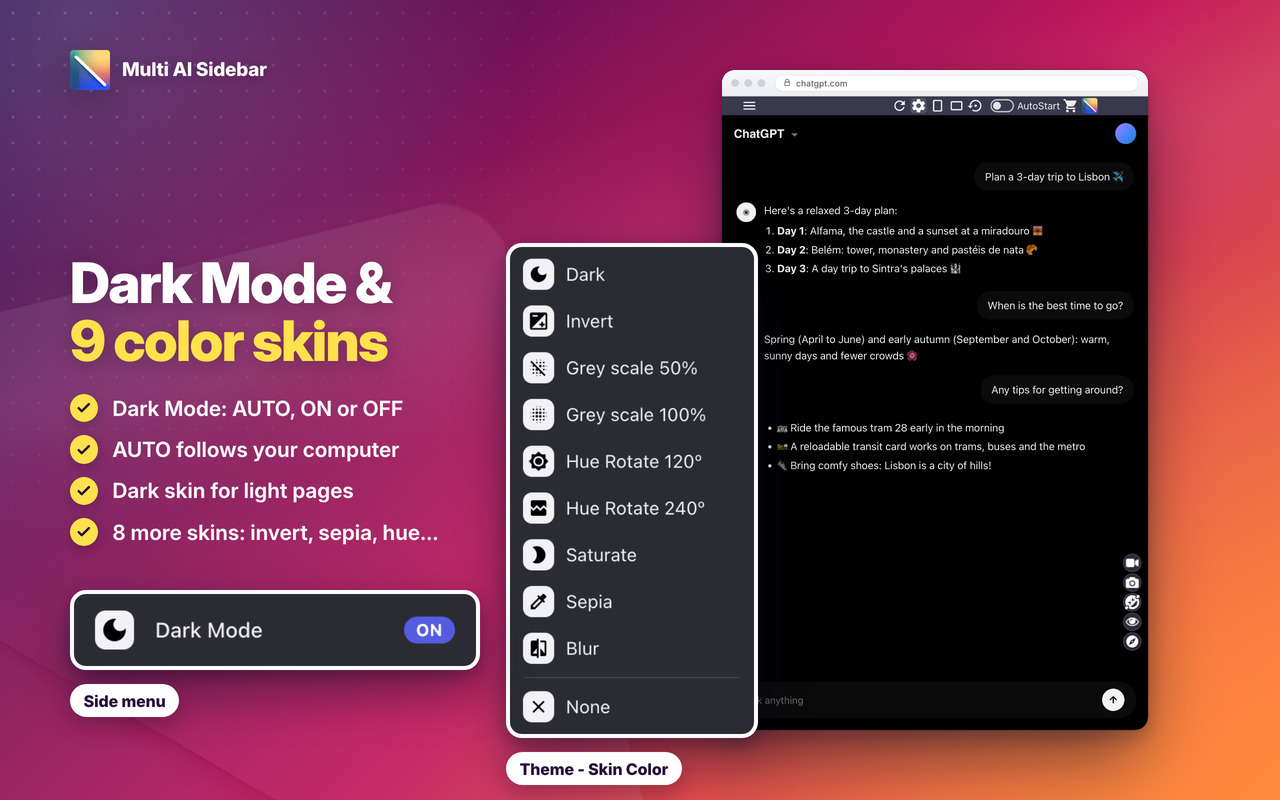
Theme - Skin Color and Dark Mode 🌙
9 skins, including the NEW Dark skin, and NEW Dark Mode: AUTO (like your computer), ON or OFF 🎨
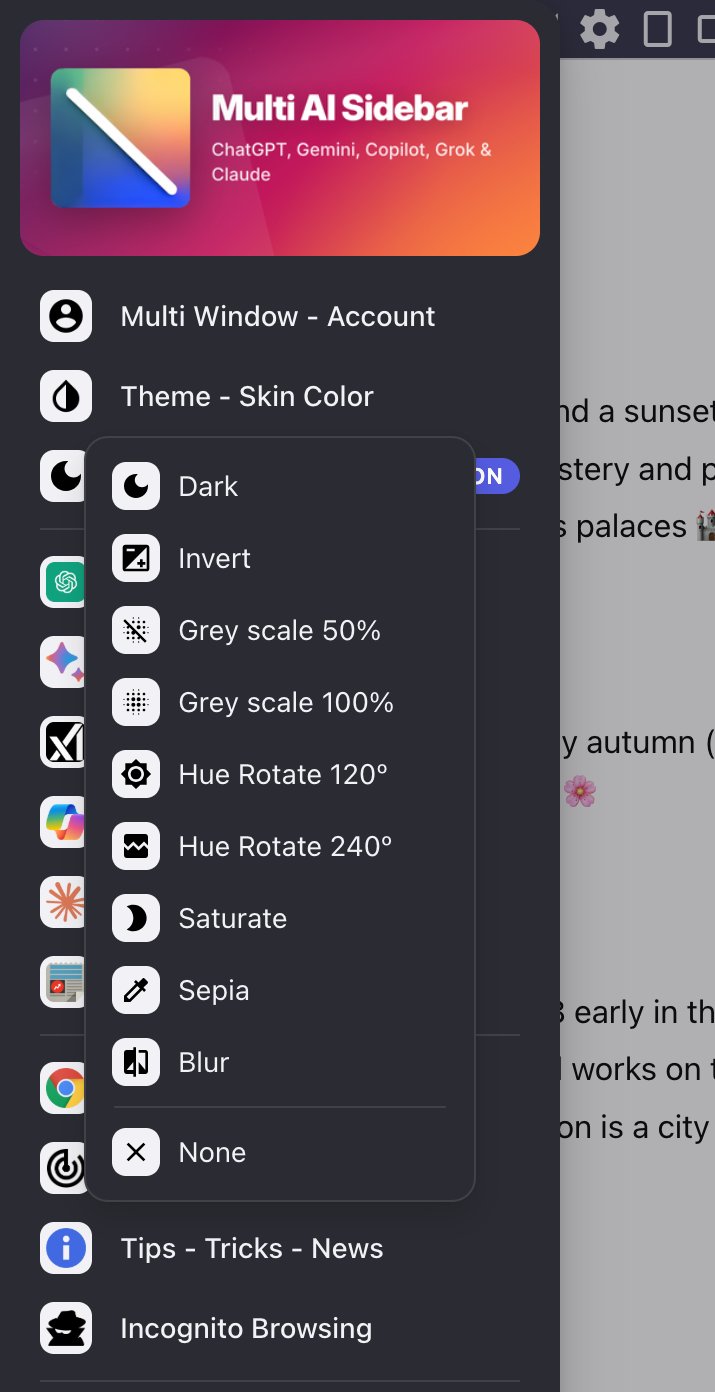
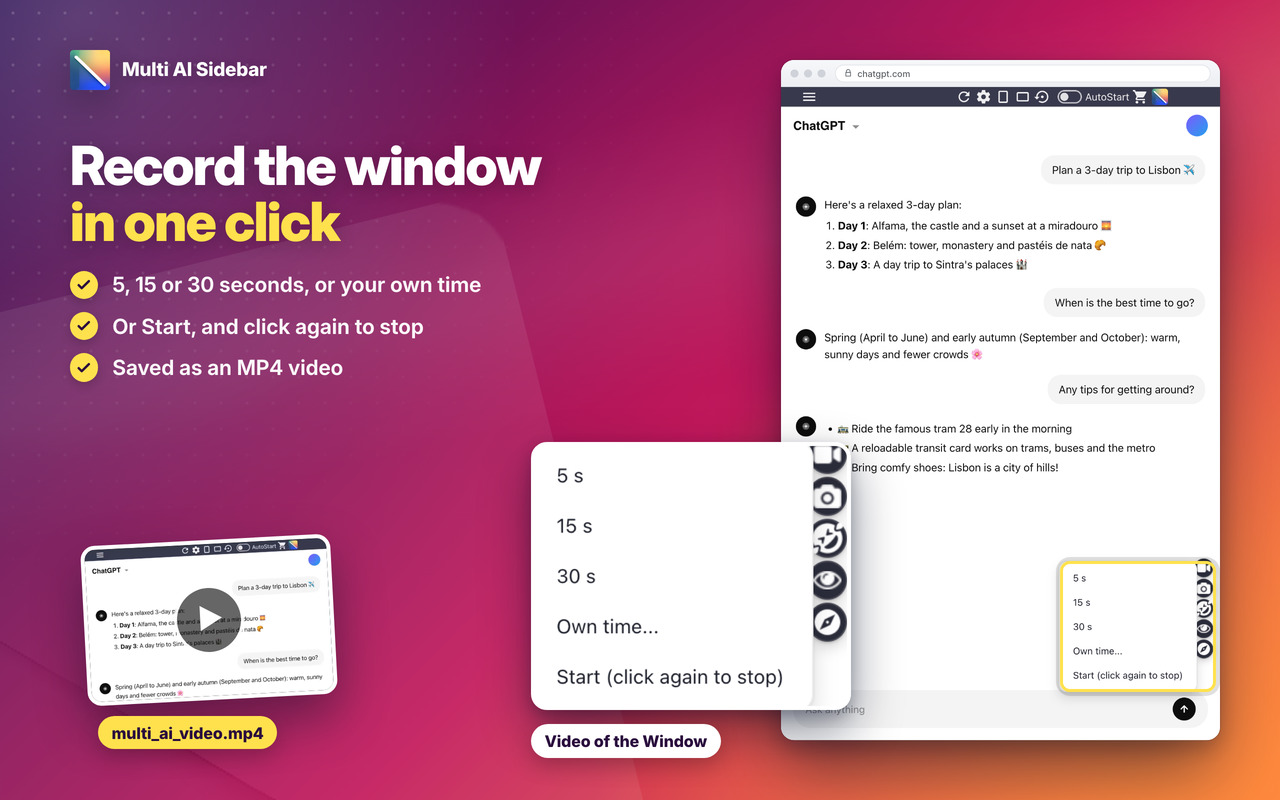
Window Screenshot and Video 📷
Save the whole window as an image in one click, or record it for 5, 15 or 30 seconds or your own time, as MP4 🎥
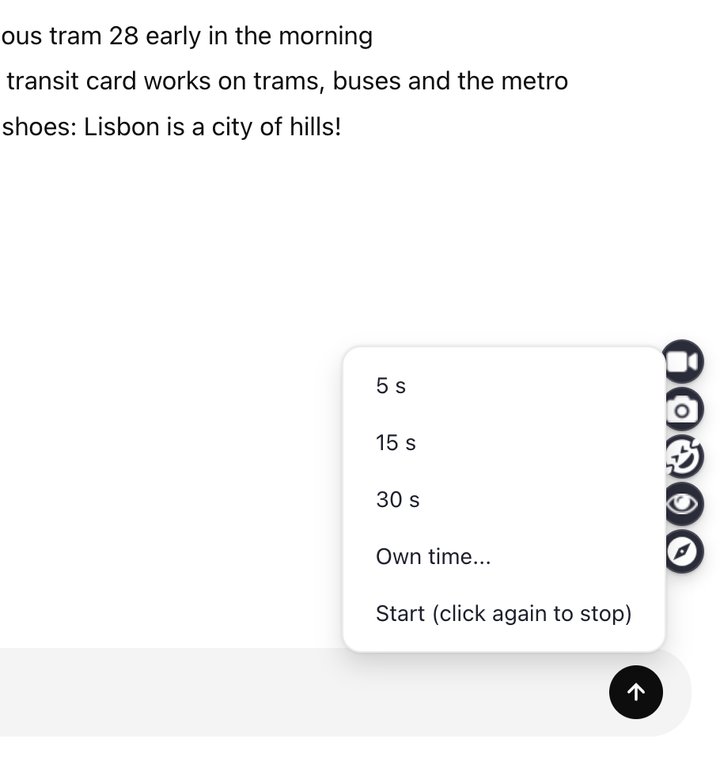
Incognito mode 🕶️
The page stays dimmed until you point at it 🕶️
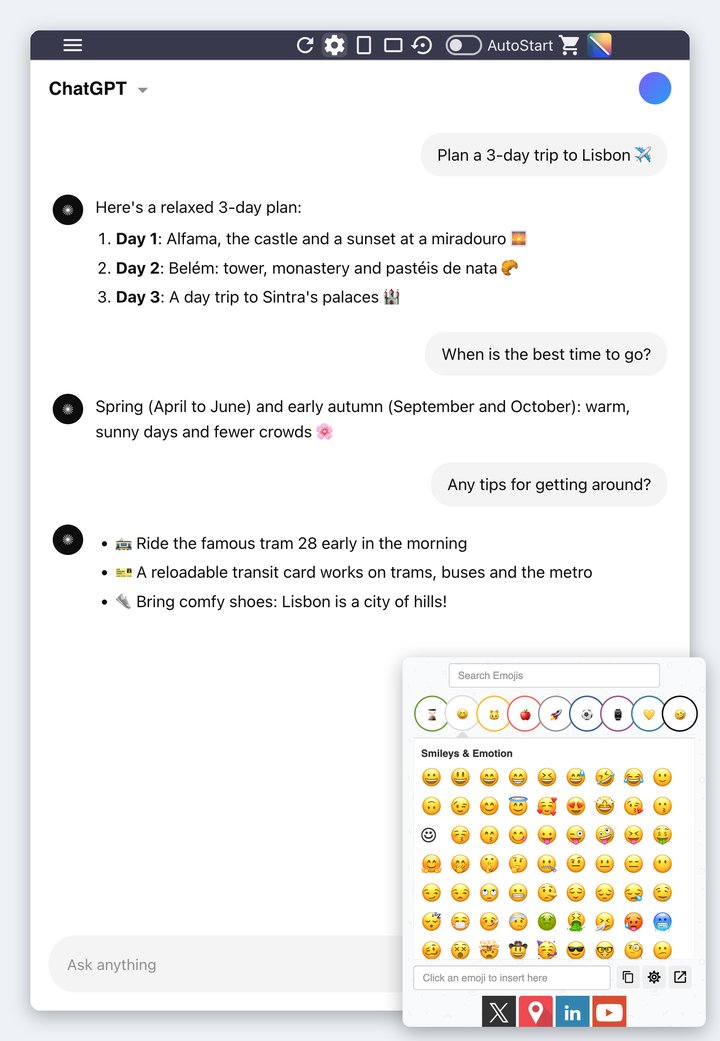
Emoji Keyboard 😀
Put emojis in your messages in one click 😀
Multi AI Sidebar
Changelog
v3.0 - 09/10/2026
✨ NEW modern look: rounded side menu, menus, messages and mini tutorial, cleaner top-bar buttons in the same places and sizes, the same on every site
🌙 NEW Dark Mode in the side menu: AUTO (like your computer), ON or OFF
🌑 NEW Dark skin: makes light pages dark and leaves dark pages as they are
📐 NEW top-bar button: the window goes back to its default size and position in one click
🖥️ The window grows on bigger screens (1440p, 4K), in its usual place
🛟 Safer window: if a monitor is unplugged or the place doesn’t fit, the window opens on the main screen instead of not opening
🎥 NEW Video of the window: 5, 15 or 30 seconds, your own time, or start and stop yourself (saved as MP4)
🎓 The mini tutorial now shows every option: the side menu (Theme – Skin Color, Multi Window – Account, Incognito, Changelog…) and the new buttons, without scrolling the page
🔄 Edge: after an update or a restart, the open window shows “click here to reload”, so the top bar keeps working
🐞 Screenshots are saved with the right name
⭐ NEW icon badge: “…” while the AI is answering, “1” when a new answer is waiting for you (ChatGPT, Gemini, Grok, Claude and Copilot)
🤖 ChatGPT, Gemini, Copilot, Claude and Grok fit the window: the message box is never cut at the bottom
🐞 ChatGPT: the page no longer jumps down when the chat history or Settings is open
🐞 ChatGPT’s new look (logged out): the top of the page is no longer hidden under the top bar, at any window size
🐞 Gemini: the chat history menu no longer hides under the top bar
🚀 Copilot now opens at its new address, copilot.com
🐞 Copilot: no more extra scrollbars
🐞 Copilot: its left bar no longer covers the side menu
🐞 Grok Imagine: the prompt bar at the bottom is no longer cut
🐞 Grok: the account button at the bottom of the chat history is fully visible
🐞 The AI switcher menu opens right under its button
👥 NEW “New Window & Account”: open a second window with another account, side by side (allow the extension in private windows: “Allow in InPrivate” on Edge, “Run in Private Windows” on Firefox)
🪟 New Window opens a little to the side, so you see both windows
🎨 Theme – Skin Color reworked: the skin covers the whole site while the top bar and menus keep their colours, “None” really clears it and “Invert” is now a real dark mode 🌙
🔗 Right-click › “Open in Multi AI Sidebar” now also on bing.com, copilot.microsoft.com and Gemini share links
🐞 Round of Bugfixes: the top bar shows on the first open, SideBar/WideBar work at the first click after you resize the window, Screenshot always takes the extension window
🖼️ News & Tips: pictures load on every site and the messages show at most once a day
🎓 Mini tutorial and popup buttons look right on every site
📐 Top bar: the menu button sits in line with the other buttons on every site, and nothing under the bar blocks clicks on the page
🔒 Security improvements and no more warnings on the extension’s Errors page
OLDER
v2.0 – 09/03/2026
⭐ Anthropic Claude: Now available the latest Claude LLM, give it a try!
🐞 Bugfixes on ChatGPT
v1.9 – 05/11/2025
⚡ Updated introJS from 7.2.0 to 8.3.2
🐞 Round of Bugfixes
🛬 Performance improvements
v1.8 – 07/02/2025
😎 Added xAI Grok to the list of AI’s available to use
🐞 Fixed bugs on ChatGPT, Gemini and Copilot
v1.7 – 30/05/2024
⚡ Updated Jquery from 3.6.4 to 3.7.1
⚡ Updated introJS from 6.0.0 to 7.2.0
🦊 Some improvements for Firefox version of the extension
v1.6 – 09/05/2024
⚡ ChatGPT changed domain from chat.openai.com to chatgpt.com
🚨 Updated extension to update ChatGPT new domain name
v1.5 – 24/03/2024
🔗 Fixed Chrome links for the new WebStore Link format from chrome.google.com/webstore to chromewebstore.google.com => https://chromewebstore.google.com/detail/kdaafcdfdmmkickmajigjaicaclnhbgi
🧬 Improved Microsoft Copilot from Bing AI
💻 Fixed window size that was getting bounds.height instead of workArea.height. The window was resized behind Windows and MacOs taskbar. Now it will get the available working area of the screen and the Extension window will be more perfectly positioned 👍
v1.4 – 08/02/2024
🚀 Upgraded Google Bard to Google Gemini the latest AI from Google [Gemini Nano, Gemini Pro, and Gemini Ultra]
🧺 Upgraded Bing Ai to Microsoft Copilot.
v1.2 – 30/01/2024
Updated Big Ai to Microsoft Copilot. Refresh for get new version ⛲
v1.0 – 20/09/2023
💣 First Release.
